Friday, March 14, 2014

Working with LiveSDK

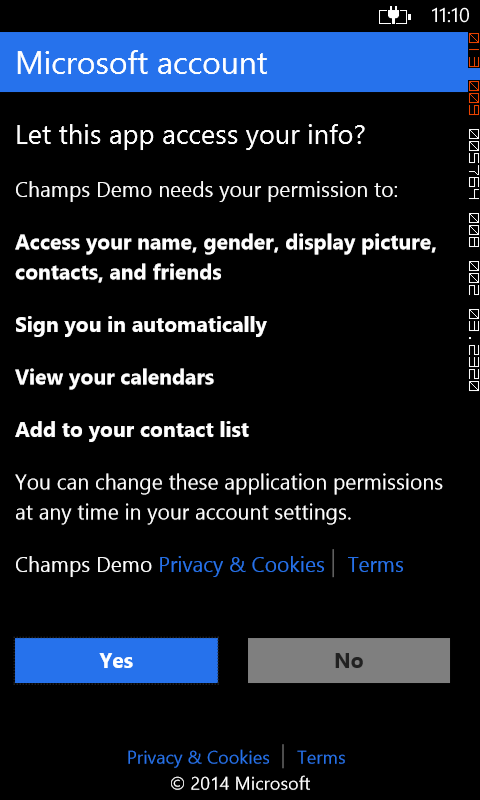
Live SDK enables you to make connect users in to Live account.

As a developer you can access each logged users
  1. Contacts.
  2. Calender.
  3. Sky drive (one drive).
In this post i'm gonna explain how to use Live SDK and demo about how to get Contacts :)


Here we go,
First You need to have Live App
To create live app goto  http://msdn.microsoft.com/en-US/live/  and in there in My Apps tab create your own app .. We need CLIENT_ID for our Mobile Application.

Installing LiveSDK 
  Create New Windows Phone Databound App

  Go to Tools -> Nuget Package Manager -> Package Manager Console In the console then type


 Install – Package LiveSDK
 Or 
You can use Visual Studio Extension Manager and search LiveSDK and install 

Add Login Button to Application
Go to XAML page that yo want to add Login Button and Paste this inside the Header. 

xmlns:live="clr-namespace:Microsoft.Live.Controls;assembly=Microsoft.Live.Controls"


Then add your XAML Button from this code .(Replace CLIENT_ID to your App's CLIENT_ID)
 <live:SignInButton Scopes="wl.basic wl.signin " ClientId="CLIENT_ID" Branding="MicrosoftAccount" SessionChanged="SignInButton_SessionChanged" VerticalContentAlignment="Top" Height="100" Margin="-10,0,10,497" VerticalAlignment="Bottom"/>
            

Scopes ??
Scopes define what kind of data that you can access through your app. This link provide detailed summery of Scopes in Live Client
http://msdn.microsoft.com/en-us/library/live/hh243646.aspx   

**In My case for just access the contacts I don't need any extended scopes just wl.basic wl.signin is enough.

assume you need to access user calender for that you need to add another field to Scopes as wl.calendars

Then Add This Code part to your C#

private async void SignInButton_SessionChanged(object sender, Microsoft.Live.ControlsLiveConnectSessionChangedEventArgs e)
        {
            if (e.Status == LiveConnectSessionStatus.Connected)
            {
                client = new LiveConnectClient(e.Session);
                try
                {
                    LiveOperationResult result = await client.GetAsync("me/contacts");
                    dynamic opresult = result.Result;

                    List<contact> contactList = new List<contact >();

                    foreach (var item in opresult.data)
                    {
                        contact dummy = new contact();
                        dummy.Name = item.name;

                        contactList.Add(dummy);
                    }

                    MainLongListSelector.ItemsSource = contactList;
                }
                catch
                {

                }
            }
        }

then Replace your MainPage phone:LongListSelector's Code with this.

<phone:LongListSelector x:Name="MainLongListSelector" Margin="0,150,0,0" ItemsSource="{Binding }" >
                <phone:LongListSelector.ItemTemplate>
                    <DataTemplate>
                      <StackPanel Margin="0,0,0,17">
                          <TextBlock Text="{Binding Name}" TextWrapping="Wrap" Style="{StaticResource PhoneTextExtraLargeStyle}"/>
                      </StackPanel>
                    </DataTemplate>
                </phone:LongListSelector.ItemTemplate>
            </phone:LongListSelector>


We are done.. compile and check :)


Thanks ...


Full Code In Media Fire 
http://goo.gl/UrRjY7


Monday, March 10, 2014

Making HTTP Post Request

Here is the correct way to send POST using HTTP Client

  var client = new HttpClient();
            var postData = new List<KeyValuePair<string, string>>();
            postData.Add(new KeyValuePair<string, string>("param1", "value"));
            postData.Add(new KeyValuePair<string, string>("param2", "value"));

            HttpContent content = new FormUrlEncodedContent(postData);

            var response = await client.PostAsync("Post URL", content);
        

Sunday, March 2, 2014

Working with JSON and HTTP requests

In this post I'm gonna demonstrate how to working with HTTP requests and JSON in Windows Phone and Windows store Applications.

I'm demonstrating Windows Phone App here, there is no different withe method if you are in the Windows Store app either.

1. Create new Windows phone App. I'm using default Windows Phone Data bound App template here.


2. Then Go to the ViewModels -> MainViewModel in the Solution Explorer and find the
  public void LoadData()
and clear all codes in it.

3. We are going to use iTune search Service.. Here is the Http GET url for it. You can try it with your browser too
http://itunes.apple.com/search?term=metallica

4. To handle Http Requests we need to install additional Nuget Package in to the project.
Tools -> Nuget Package Manager -> Package Manager Console
In the console then type

Install-Package Microsoft.Net.Http
 
Then Press enter.. You need internet connection to install it. I'll post later abut Nugets

5. Then change LoadData() as async
  public async void LoadData()  

for get the response from the Service use following code


 public async void LoadData()
        {
            // Sample data; replace with real data
            //this.Items.Add(new ItemViewModel() { ID = "0", LineOne = "runtime one", LineTwo = "Maecenas praesent accumsan bibendum", LineThree = "Facilisi faucibus habitant inceptos interdum lobortis nascetur pharetra placerat pulvinar sagittis senectus sociosqu" });

            HttpClient client = new HttpClient();

            string jsonResponse = await client.GetStringAsync("http://itunes.apple.com/search?term=metallica");


6. Response cumming as a string we need to convert it to Objects , it will helpful to manage it
for that install Newtonsoft.Json Package in Nuget Package Manager as same as Microsoft.Net.Http

PM> Install-Package Newtonsoft.Json

then de-serialize the string in to code... we need classes to convert this string to objects.

7. For that, get the Json response string . (Put break point below this line)
 string jsonResponse = await client.GetStringAsync("http://itunes.apple.com/search?term=metallica");

Copy it and

go to the http://json2csharp.com/
paste and click on Generate It will give You class set that you need to de-serialize Json
Add those classes to the namespace  I changed RootObject to songRoot

8. Here is the code part for de-serializing


songRoot deserialized = await JsonConvert.DeserializeObjectAsync<songRoot>(jsonResponse);


9. We are done.. Then bind the data as  you want.. Here is my total code in LoadData(). None of other codes are change.


public async void LoadData()
        {
            
            HttpClient client = new HttpClient();

            string jsonResponse = await client.GetStringAsync("http://itunes.apple.com/search?term=metallica");

            //for deserialize json and get the class
            songRoot deserialized = await JsonConvert.DeserializeObjectAsync<songRoot>(jsonResponse);

            foreach (var item in deserialized.results)
            {
                this.Items.Add(new ItemViewModel()
                {
                    ID = item.trackId.ToString(),
                    LineOne = item.trackName,
                    LineTwo = item.trackPrice.ToString(),
                    LineThree = item.trackCount.ToString(),
                });
            }

            this.IsDataLoaded = true;
        }


Enjoy


Full Code In Media Fire 
http://bit.ly/NJqpAb


Wednesday, February 19, 2014

Unit testing in Windows Store App

In Visual Studio 2012 onwards , there is a new project template called Unit Test Library (Windows Store apps). A Unit Test Library can contain many test classes.Test classes are marked with the TestClass attribute. Test classes contain test methods, initialization code, and cleanup code.

Test method — Test methods are marked with the TestMethod attribute. These methods run
separately one by one. Each method has a result that determines whether the test was successful,
or if it failed.

Initialization — Every test class can have a single method decorated with the TestInitialize
attribute. This method runs before every test method to perform any intitialization needed. Unit
tests should not use real data, network connections, or database access. If a component needs
a data source, it is best to create a fake one. You can do this in the initialization stage so that
every test method can use it.

Cleanup — Every test class can have a single method decorated with the TestCleanup attribute.
This method runs after every test method to clean up any changes after the test methods.
You can ensure that every test method runs on the same environment and configuration.


This unit test is running on user defined data set and it running with application build state. Then no need to run the application to test it. just Build is enough :)

Lets start.,

1. Create new Windows store app. (name it as UnitTestAdd)
2. Add this class to it (add-> new item->class)


using System;
using System.Collections.Generic;
using System.Linq;
using System.Text;
using System.Threading.Tasks;

/*
 * This code is owned to Prabath Maduranga Peiris
 * Using for demonstration purposes in
 *  
 * www.prabathsl.blogspot.com
 * 
 */
namespace Simple_Addition
{
    public class cal
    {
        public int add(int a, int b)
        {
            return a + b;
        }
    }
}

** Actually we are gonna test this add() code unit.

3.  Then R-click on the Solution and Add-> new Project -> select Unit Test Library and add name to it.

4. Then go to the Unit test  project and R-Click on the References from Reference Manager select Solution -> Project and select your project 


5. Then create property for unitTest class , It should be type of object that you gonna test


Simple_Additioncal testObject; 

6. Then initialize the unit test .


namespace testAdditionDemo
{
    [TestClass]
    public class UnitTest1
    {
        Simple_Additioncal testObject; 

        [TestInitialize]
        public void Initialize()
        {
            testObject = new Simple_Additioncal();
        }

7. Then Create Test Method


  [TestMethod]
        public void TestMethodAddition()
        {
            int a = 34;
            int b = 20;
            int expectedAns = 54;
            int answer = testObject.add(a,b);

            /*
             * Assert.AreEqual(expectedResult, cakculatedAnswerFromUnit,error Message ) 
             */

            Assert.AreEqual(expectedAns,answer,String.Format("Expected Result for {0} + {1} = {2}",a,b,expectedAns));
        }

8. Then build the solution

If you can't see the Test Explorer then go to Test -> Windows -> Test Explorer

Here is the results

1. I change add method in Cal  class in to this

 public int add(int a, int b)
        {
            return a - b;
        }

then our test should be false ...


result with default Cal class..


Enjoy :)


Full Code In Media Fire 
http://bit.ly/1blHlHA

Tuesday, February 18, 2014

Windows 8 Application Architecture

With the introduction of Windows 8 , Microsoft introduced a new Architectural platform to developers to develop new application model called Windows Store App   . It enables developers to develop Applications on different languages.

Each programming language has a corresponding app model. The app model is a set of files and design patterns that express an implementation architecture.


 In windows 8 App Architecture there are some Key things
  1. App Entry Point 
  2. Presentation Technology
  3. Asynchronous Programming Model.
Lets See them :)


 App Entry Point

The app's entry point is the function or method that the system calls to start running your app's code. The entry point depends on the programming language.


App model
Entry point
File location
JavaScript
onactivated function
default.js in js folder
C#/Visual Basic
OnLaunched method
App.xaml.cs / App.xaml.vb
C++/CX with XAML
OnLaunched method
App.xaml.cpp
C++/CX with Microsoft Direct3D
main function
Direct3DApp1.cpp


 Presentation technologies

 The app model's presentation technology defines the look and feel of the app.

Programming language
Presentation technology

JavaScript
HTML5

C#/Visual Basic
XAML

C++/CX
XAML, DirectX, and XAML/DirectX interop

Asynchronous programming

App model
Asynchronous

JavaScript
Common JS Promises/A

C#/Visual Basic
async/await keywords

C++/CX
task class / IAsyncOperation


References (http://msdn.microsoft.com/library/windows/apps/br211361)


Monday, February 17, 2014

Binding XML to Default Windows Store template


This Post is about binding data in to default Windows Store application template that provided in Visual Studio 2012 onwards. ( My demo is with windows 8.1 App in Visual Studio 2013 )

Lets begin :)

1. Open Your Visual Studio and Create New Project (make sure that you are selecting Visual c# and Windows Store )

2. Then add Name and set the path for project and select Grid App (XAML) template . Then create the solution


3. Then I'm creating separate folder to keep my XML ( **not compulsory )
     R click on Project-> Add ->New Folder , I name it as xml_data


4. R click on the xml_data folder and Add-> New Item -> in Data sub menu select XML File ,          Named it as data.xml

I'm gonna create App that have two groups. here is my XML file format(* you can have your own format)


Code:
<?xml version="1.0" encoding="utf-8" ?>
<data>
  <item>
    <cat>Category 1</cat>
    <id>1</id>
    <name>Name 1</name>
    <image>sample.png</image>
    <description>Contrary to popular belief, Lorem Ipsum is not simply random text. It has roots in a piece of classical Latin literature from 45 BC, making it over 2000 years old. Richard McClintock, a Latin professor at Hampden-Sydney College in Virginia, looked up one of the more obscure Latin words, consectetur, from a Lorem Ipsum passage, and going through the cites of the word in classical literature, discovered the undoubtable source. Lorem Ipsum comes from sections 1.10.32 and 1.10.33 of "de Finibus Bonorum et Malorum" (The Extremes of Good and Evil) by Cicero, written in 45 BC. This book is a treatise on the theory of ethics, very popular during the Renaissance. The first line of Lorem Ipsum, "Lorem ipsum dolor sit amet..", comes from a line in section 1.10.32.

The standard chunk of Lorem Ipsum used since the 1500s is reproduced below for those interested. Sections 1.10.32 and 1.10.33 from "de Finibus Bonorum et Malorum" by Cicero are also reproduced in their exact original form, accompanied by English versions from the 1914 translation by H. Rackham.</description>
  </item>
  <item>
    <cat>Category 1</cat>
    <id>2</id>
    <name>Name 2</name>
    <image>sample.png</image>
    <description>Contrary to popular belief, Lorem Ipsum is not simply random text. It has roots in a piece of classical Latin literature from 45 BC, making it over 2000 years old. Richard McClintock, a Latin professor at Hampden-Sydney College in Virginia, looked up one of the more obscure Latin words, consectetur, from a Lorem Ipsum passage, and going through the cites of the word in classical literature, discovered the undoubtable source. Lorem Ipsum comes from sections 1.10.32 and 1.10.33 of "de Finibus Bonorum et Malorum" (The Extremes of Good and Evil) by Cicero, written in 45 BC. This book is a treatise on the theory of ethics, very popular during the Renaissance. The first line of Lorem Ipsum, "Lorem ipsum dolor sit amet..", comes from a line in section 1.10.32.

The standard chunk of Lorem Ipsum used since the 1500s is reproduced below for those interested. Sections 1.10.32 and 1.10.33 from "de Finibus Bonorum et Malorum" by Cicero are also reproduced in their exact original form, accompanied by English versions from the 1914 translation by H. Rackham.</description>
  </item>
  <item>
    <cat>Category 1</cat>
    <id>3</id>
    <name>Name 3</name>
    <image>sample.png</image>
    <description>Contrary to popular belief, Lorem Ipsum is not simply random text. It has roots in a piece of classical Latin literature from 45 BC, making it over 2000 years old. Richard McClintock, a Latin professor at Hampden-Sydney College in Virginia, looked up one of the more obscure Latin words, consectetur, from a Lorem Ipsum passage, and going through the cites of the word in classical literature, discovered the undoubtable source. Lorem Ipsum comes from sections 1.10.32 and 1.10.33 of "de Finibus Bonorum et Malorum" (The Extremes of Good and Evil) by Cicero, written in 45 BC. This book is a treatise on the theory of ethics, very popular during the Renaissance. The first line of Lorem Ipsum, "Lorem ipsum dolor sit amet..", comes from a line in section 1.10.32.

The standard chunk of Lorem Ipsum used since the 1500s is reproduced below for those interested. Sections 1.10.32 and 1.10.33 from "de Finibus Bonorum et Malorum" by Cicero are also reproduced in their exact original form, accompanied by English versions from the 1914 translation by H. Rackham.</description>
  </item>
  <item>
    <cat>Category 2</cat>
    <id>4</id>
    <name>Name 4</name>
    <image>sample.png</image>
    <description>Contrary to popular belief, Lorem Ipsum is not simply random text. It has roots in a piece of classical Latin literature from 45 BC, making it over 2000 years old. Richard McClintock, a Latin professor at Hampden-Sydney College in Virginia, looked up one of the more obscure Latin words, consectetur, from a Lorem Ipsum passage, and going through the cites of the word in classical literature, discovered the undoubtable source. Lorem Ipsum comes from sections 1.10.32 and 1.10.33 of "de Finibus Bonorum et Malorum" (The Extremes of Good and Evil) by Cicero, written in 45 BC. This book is a treatise on the theory of ethics, very popular during the Renaissance. The first line of Lorem Ipsum, "Lorem ipsum dolor sit amet..", comes from a line in section 1.10.32.

The standard chunk of Lorem Ipsum used since the 1500s is reproduced below for those interested. Sections 1.10.32 and 1.10.33 from "de Finibus Bonorum et Malorum" by Cicero are also reproduced in their exact original form, accompanied by English versions from the 1914 translation by H. Rackham.</description>
  </item>
  <item>
    <cat>Category 2</cat>
    <id>5</id>
    <name>Name 5</name>
    <image>sample.png</image>
    <description>Contrary to popular belief, Lorem Ipsum is not simply random text. It has roots in a piece of classical Latin literature from 45 BC, making it over 2000 years old. Richard McClintock, a Latin professor at Hampden-Sydney College in Virginia, looked up one of the more obscure Latin words, consectetur, from a Lorem Ipsum passage, and going through the cites of the word in classical literature, discovered the undoubtable source. Lorem Ipsum comes from sections 1.10.32 and 1.10.33 of "de Finibus Bonorum et Malorum" (The Extremes of Good and Evil) by Cicero, written in 45 BC. This book is a treatise on the theory of ethics, very popular during the Renaissance. The first line of Lorem Ipsum, "Lorem ipsum dolor sit amet..", comes from a line in section 1.10.32.

The standard chunk of Lorem Ipsum used since the 1500s is reproduced below for those interested. Sections 1.10.32 and 1.10.33 from "de Finibus Bonorum et Malorum" by Cicero are also reproduced in their exact original form, accompanied by English versions from the 1914 translation by H. Rackham.</description>
  </item>
  <item>
    <cat>Category 2</cat>
    <id>6</id>
    <name>Name 6</name>
    <image>sample.png</image>
    <description>Contrary to popular belief, Lorem Ipsum is not simply random text. It has roots in a piece of classical Latin literature from 45 BC, making it over 2000 years old. Richard McClintock, a Latin professor at Hampden-Sydney College in Virginia, looked up one of the more obscure Latin words, consectetur, from a Lorem Ipsum passage, and going through the cites of the word in classical literature, discovered the undoubtable source. Lorem Ipsum comes from sections 1.10.32 and 1.10.33 of "de Finibus Bonorum et Malorum" (The Extremes of Good and Evil) by Cicero, written in 45 BC. This book is a treatise on the theory of ethics, very popular during the Renaissance. The first line of Lorem Ipsum, "Lorem ipsum dolor sit amet..", comes from a line in section 1.10.32.

The standard chunk of Lorem Ipsum used since the 1500s is reproduced below for those interested. Sections 1.10.32 and 1.10.33 from "de Finibus Bonorum et Malorum" by Cicero are also reproduced in their exact original form, accompanied by English versions from the 1914 translation by H. Rackham.</description>
  </item>
</data>

5. Then go to the Data Model  folder and select SampleDataSource.cs   and go to the GetSampleDataAsync() method and format it as below


Code:
 private async Task GetSampleDataAsync()
        {
            if (this._groups.Count != 0)
                return;

            //Groups that I gonna bind data
            var group1 = new SampleDataGroup("Group 1",
                "Category 1", 
                "Sample sub 1",
                "Assets/DarkGray.png",
                "Group Description: Lorem ipsum dolor sit amet, consectetur adipiscing elit.");
            var group2 = new SampleDataGroup("Group 2",
                "Category 2",
                "Sample sub 2",
                "Assets/DarkGray.png",
                "Group Description: Lorem ipsum dolor sit amet, consectetur adipiscing elit.");


            // Asynchronously load the XML file from local storage
            // using Windows.Storage;
            Uri dataUri = new Uri("ms-appx:///xml_data/data.xml");
            StorageFile file = await StorageFile.GetFileFromApplicationUriAsync(dataUri);
            string xmlString = await FileIO.ReadTextAsync(file);

            // Load the XML to XDocument             
            // using System.Xml.Linq;
            XDocument xmlDoc = XDocument.Parse(xmlString);

            //select all items from XML and Load them  in to temporary list
            var items = from data in xmlDoc.Descendants("item")
                        select new
                        {
                            Cat_ = data.Element("cat").Value,
                            Id_ = data.Element("id").Value,
                            Name_ = data.Element("name").Value,
                            Img_ = "Assets/" + data.Element("image").Value,// My images are located in Assets folder
                            Description_ = data.Element("description").Value,
                        };

            //load items to the groups
            foreach (var itemData in items)
            {
                //add items to group 1
                if(itemData.Cat_.Equals("Category 1"))
                {
                    group1.Items.Add(new SampleDataItem(itemData.Id_,
                   itemData.Name_,
                   "Item Subtitle:",
                   itemData.Img_,
                   itemData.Description_,
                   itemData.Description_));
                }

                //add items to group 2
                if (itemData.Cat_.Equals("Category 2"))
                {
                    group2.Items.Add(new SampleDataItem(itemData.Id_,
                   itemData.Name_,
                   "Item Subtitle:",
                   itemData.Img_,
                   itemData.Description_,
                   itemData.Description_));
                }
            }

            this.Groups.Add(group1);
            this.Groups.Add(group2);

        }


Then run the code. :) we are done


Full Code In Media Fire 
http://bit.ly/1bgNdSD

Web Services What and Why ??


A Web Service is a software program that uses XML to exchange information with other software via common internet protocols. In a simple sense, Web Services are a way for interacting with objects over the Internet.


Why?
  • Language Independent.
  • Protocol Independent.
  • Platform Independent.
  • It assumes a stateless service architecture.
  • Scalable (e.g. multiplying two numbers together to an entire customer-relationship management system).
  • Programmable (encapsulates a task).
  • Based on XML (open, text-based standard).
  • Self-describing (metadata for access and use).
  • Discoverable (search and locate in registries)

Web Service Technologies
  • XML - Describes only data. So, any application that understands XML-regardless of the application's programming language or platform-has the ability to format XML in a variety of ways (well-formed or valid).
  • SOAP - Provides a communication mechanism between services and applications.
  • WSDL - Offers a uniform method of describing web services to other programs.
  • UDDI - Enables the creation of searchable Web services registries.